Skip to content
Wallpaper Drip
  • Latest Wallpapers
  • About
  • Contact
Wallpaper Drip
Cars | Mobile

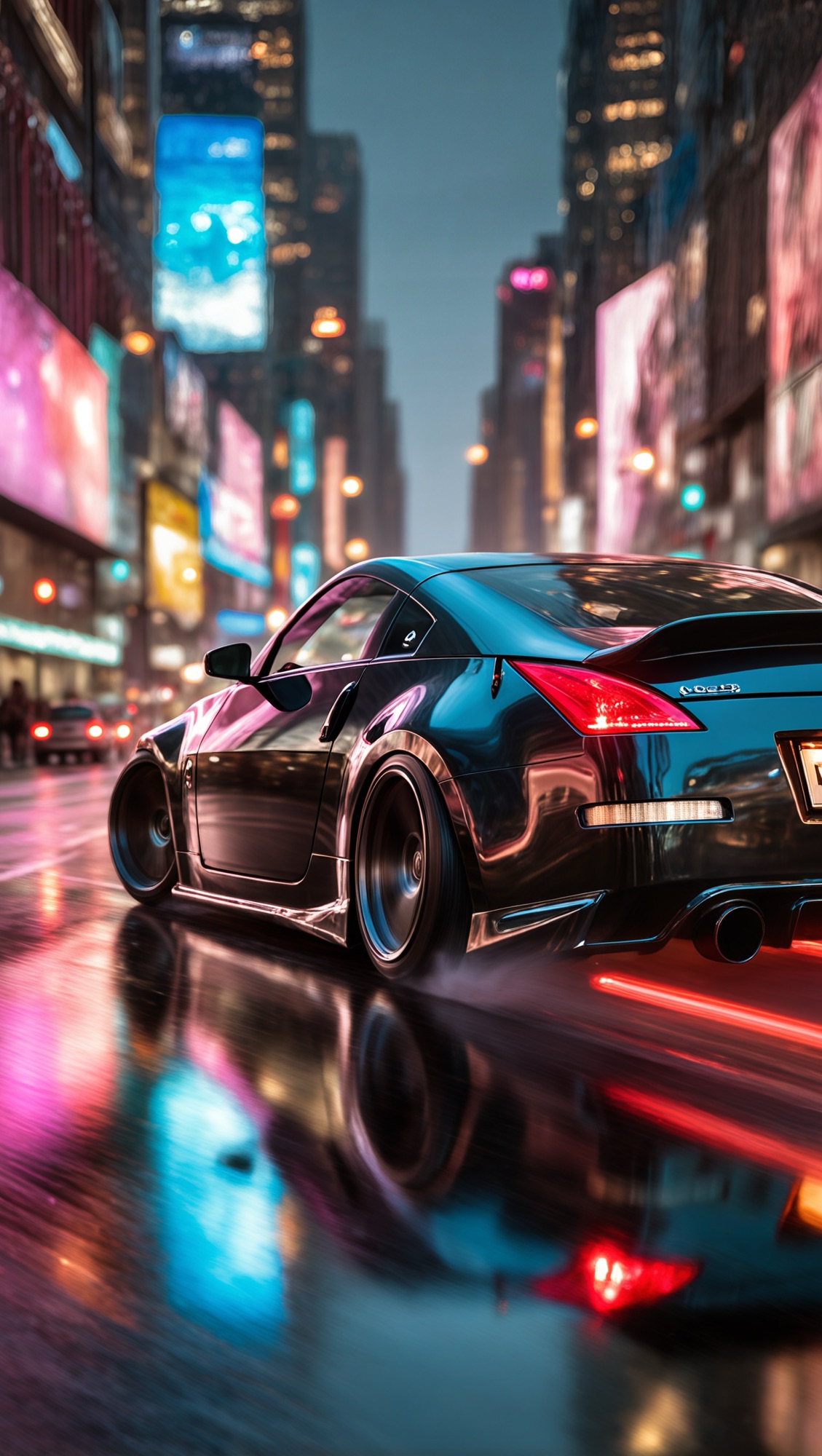
350 Z – Night Drift

Post Tags: #JDM#Nissan#Nissan 350 Z#Sports car

Post navigation

Previous Previous
Toyota MR2 SW20 – Black out
NextContinue
Porsche Carrera GT – Reflections

Similar Posts

  • Nissan Silva S15- Godspeed Ghost
    Cars | Mobile

    Nissan Silva S15- Godspeed Ghost

    Read More Nissan Silva S15- Godspeed GhostContinue

  • A High speed adventure in the McLaren 720S
    Cars | Mobile

    A High speed adventure in the McLaren 720S

    Read More A High speed adventure in the McLaren 720SContinue

  • Glassy Mountain
    3D Renders | ALL | Mobile

    Glassy Mountain

    Read More Glassy MountainContinue

  • Broken Glass Collection
    Abstract | ALL | Mobile

    Broken Glass Collection

    Read More Broken Glass CollectionContinue

  • Lamborghini Aventador SVJ – parked near a cliffside coastal road
    Cars | Mobile

    Lamborghini Aventador SVJ – parked near a cliffside coastal road

    Read More Lamborghini Aventador SVJ – parked near a cliffside coastal roadContinue

  • Honda Integra DC5 – Anime
    Cars | Mobile

    Honda Integra DC5 – Anime

    Read More Honda Integra DC5 – AnimeContinue

Leave a Reply Cancel reply

Your email address will not be published. Required fields are marked *

How to Download an Image and Set It as Wallpaper on iPhone

Step 1: Download the Image

  1. Tap and hold on the image you want to download.
  2. From the menu that pops up, tap “Add to Photos” or “Save Image.”
  3. The image is now saved to your Photos app.

Step 2: Set the Image as Wallpaper

  1. Open the Photos app and find the image you just saved.
  2. Tap the share icon (square with an arrow pointing up).
  3. Scroll down and tap “Use as Wallpaper.”
  4. Adjust the image as needed, then tap “Set.”
  5. Choose one of the following:
    • Set Lock Screen
    • Set Home Screen
    • Set Both

You're done! Your new wallpaper is now set.


How to Download an Image and Set It as Wallpaper on Android

Step 1: Download the Image

  1. Tap and hold the image you want to download.
  2. In the pop-up menu, tap “Download image.”
  3. The image will be saved to your Downloads folder or Gallery/Photos app.

Step 2: Set the Image as Wallpaper

  1. Open the Gallery or Photos app and find the downloaded image.
  2. Tap the three-dot menu (or More Options) and select “Set as wallpaper.”
    (If you don’t see that option, tap the share icon and look for “Set as wallpaper.”)
  3. Choose where you want the wallpaper to appear:
    • Home screen
    • Lock screen
    • Both
  4. Adjust or crop the image if prompted, then tap “Set wallpaper.”

Company

  • About Us
  • Contact Us
  • Privacy Policy
  • Terms Of Use
  • FAQ

© 2026 Wallpaper Drip By: Ubanks Design Lab

  • Latest Wallpapers
  • About
  • Contact
Search